
482 lines
16 KiB
Markdown
482 lines
16 KiB
Markdown
# Go development tools
|
||
|
||
In this section, I'm going to show you a few IDEs that can help you become a more efficient programmer, with capabilities such as intelligent code completion and auto-formatting. They are all cross-platform, so the steps I will be showing you should not be very different, even if you are not using the same operating system.
|
||
|
||
## LiteIDE
|
||
|
||
LiteIDE is an open source, lightweight IDE for developing Go projects only, developed by visualfc.
|
||
|
||

|
||
|
||
Figure 1.4 Main panel of LiteIDE
|
||
|
||
LiteIDE features.
|
||
|
||
- Cross-platform
|
||
- Windows
|
||
- Linux
|
||
- Mac OS
|
||
- Cross-compile
|
||
- Manage multiple compile environments
|
||
- Supports cross-compilation of Go
|
||
- Project management standard
|
||
- Documentation view based on $GOPATH
|
||
- Compilation system based on $GOPATH
|
||
- API documentation index based on $GOPATH
|
||
- Go source code editor
|
||
- Code outlining
|
||
- Full support of gocode
|
||
- Go documentation view and API index
|
||
- View code expression using `F1`
|
||
- Function declaration jump using `F2`
|
||
- Gdb support
|
||
- Auto-format with `gofmt`
|
||
- Others
|
||
- Multi-language
|
||
- Plugin system
|
||
- Text editor themes
|
||
- Syntax support based on Kate
|
||
- intelligent completion based on full-text
|
||
- Customized shortcuts
|
||
- Markdown support
|
||
- Real-time preview
|
||
- Customized CSS
|
||
- Export HTML and PDF
|
||
- Convert and merge to HTML and PDF
|
||
|
||
### LiteIDE installation
|
||
|
||
- Install LiteIDE
|
||
- [Download page](https://sourceforge.net/projects/liteide/files/)
|
||
- [Source code](https://github.com/visualfc/liteide)
|
||
|
||
You need to install Go first, then download the version appropriate for your operating system. Decompress the package to directly use it.
|
||
- Install gocode
|
||
|
||
You have to install gocode in order to use intelligent completion
|
||
|
||
go get -u github.com/nsf/gocode
|
||
|
||
- Compilation environment
|
||
|
||
Switch configuration in LiteIDE to suit your operating system.
|
||
In Windows and using the 64-bit version of Go, you should choose win64 as the configuration environment in the tool bar. Then, choose `Options`, find `LiteEnv` in the left list and open file `win64.env` in the right list.
|
||
|
||
GOROOT=c:\go
|
||
GOBIN=
|
||
GOARCH=amd64
|
||
GOOS=windows
|
||
CGO_ENABLED=1
|
||
|
||
PATH=%GOBIN%;%GOROOT%\bin;%PATH%
|
||
。。。
|
||
|
||
Replace `GOROOT=c:\go` to your Go installation path, save it. If you have MinGW64, add `c:\MinGW64\bin` to your path environment variable for `cgo` support.
|
||
|
||
In Linux and using the 64-bit version of Go, you should choose linux64 as the configuration environment in the tool bar. Then, choose `Options`, find `LiteEnv` in the left list and open the `linux64.env` file in the right list.
|
||
|
||
GOROOT=$HOME/go
|
||
GOBIN=
|
||
GOARCH=amd64
|
||
GOOS=linux
|
||
CGO_ENABLED=1
|
||
|
||
PATH=$GOBIN:$GOROOT/bin:$PATH
|
||
。。。
|
||
|
||
Replace `GOROOT=$HOME/go` to your Go installation path, save it.
|
||
- $GOPATH
|
||
$GOPATH is the path that contains a list of projects. Open the command tool (or press ``Ctrl+` ``in LiteIDE), then type `go help gopath` for more details.
|
||
It's very easy to view and change $GOPATH in LiteIDE. Follow `View - Setup GOPATH` to view and change these values.
|
||
|
||
## Sublime Text
|
||
|
||
Here I'm going to introduce you the Sublime Text 3 (Sublime for short) + GoSublime + gocode. Let me explain why.
|
||
|
||
- Intelligent completion
|
||
|
||

|
||
|
||
Figure 1.5 Sublime intelligent completion
|
||
- Auto-format source files
|
||
- Project management
|
||
|
||
|
||
|
||
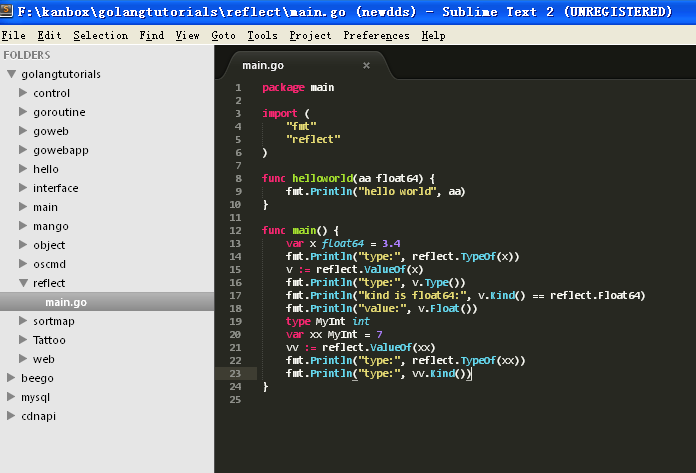
Figure 1.6 Sublime project management
|
||
|
||
- Syntax highlight
|
||
- Free trial forever with no functional limitations. You may be prompted once in a while to remind you to purchase a license, but you can simply ignore it if you wish. Of course, if you do find that it enhances your productivity and you really enjoy using it, please purchase a copy of it and support its continued development!
|
||
|
||
First, download the version of [Sublime](http://www.sublimetext.com/) suitable for your operating system.
|
||
|
||
1. Press ``Ctrl+` ``, open the command tool and input the following commands.
|
||
|
||
Applicable to Sublime Text 3:
|
||
|
||
```Go
|
||
import urllib.request,os;pf='Package Control.sublime-package';ipp=sublime.installed_packages_path();urllib.request.install_opener(urllib.request.build_opener(urllib.request.ProxyHandler()));open(os.path.join(ipp,pf),'wb').write(urllib.request.urlopen('http://sublime.wbond.net/'+pf.replace(' ','%20')).read())
|
||
```
|
||
Applicable to Sublime Text 2:
|
||
|
||
```Go
|
||
import urllib2,os;pf='Package Control.sublime-package';ipp=sublime.installed_packages_path();os.makedirs(ipp)ifnotos.path.exists(ipp)elseNone;urllib2.install_opener(urllib2.build_opener(urllib2.ProxyHandler()));open(os.path.join(ipp,pf),'wb').write(urllib2.urlopen('http://sublime.wbond.net/'+pf.replace(' ','%20')).read());print('Please restart Sublime Text to finish installation')
|
||
```
|
||
|
||
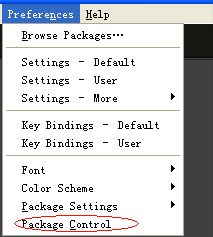
Restart Sublime Text when the installation has finished. You should then find a `Package Control` option in the "Preferences" menu.
|
||
|
||
|
||
|
||
Figure 1.7 Sublime Package Control
|
||
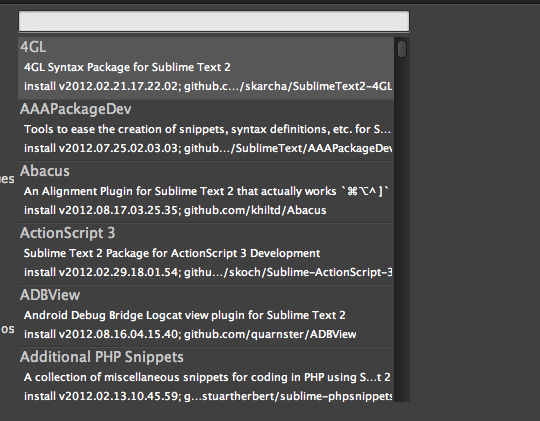
2. To install GoSublime, SidebarEnhancements and Go Build, press `Ctrl+Shift+p` to open Package Control, then type `pcip` (short for "Package Control: Install Package").
|
||
|
||
|
||
|
||
Figure 1.8 Sublime Install Packages
|
||
|
||
Now type in "GoSublime", press OK to install the package, and repeat the same steps for installing SidebarEnhancements and Go Build. Once again, restart the editor when it completes the installation.
|
||
3. To verify that the installation is successful, open Sublime, then open the `main.go` file to see if it has the proper syntax highlighting. Type `import` to see if code completion prompts appear. After typing `import "fmt"`, type `fmt.` anywhere after the `import` declaration to see whether or not intelligent code completion for functions was successfully enabled.
|
||
|
||
If everything is fine, you're all set.
|
||
|
||
If not, check your $PATH again. Open a terminal, type `gocode`. If it does not run, your $PATH was not configured correctly.
|
||
|
||
## Vim
|
||
|
||
Vim is a popular text editor for programmers, which evolved from its slimmer predecessor, Vi. It has functions for intelligent completion, compilation and jumping to errors.
|
||
|
||
vim-go is vim above an open-source go language using the most extensive development environment plug-ins
|
||
|
||
The plugin address:[github.com/fatih/vim-go](https://github.com/fatih/vim-go)
|
||
|
||
Vim plugin management are the mainstream [Pathogen](https://github.com/tpope/vim-pathogen) and [Vundle](https://github.com/VundleVim/Vundle.vim)
|
||
,But the aspects thereof are different.
|
||
Pathogen is to solve each plug-in after the installation of files scattered to multiple directories and poor management of the existence. Vundle is to solve the automatic search and download plug-ins exist.
|
||
These two plug-ins can be used simultaneously.
|
||
|
||
1.Install Vundle
|
||
|
||
```sh
|
||
mkdir ~/.vim/bundle
|
||
git clone https://github.com/gmarik/Vundle.vim.git ~/.vim/bundle/Vundle.vim
|
||
```
|
||
|
||
Edit .vimrc,Vundle the relevant configuration will be placed in the beginning([Refer to the Vundle documentation for details](https://github.com/VundleVim/Vundle.vim))
|
||
|
||
```sh
|
||
set nocompatible " be iMproved, required
|
||
filetype off " required
|
||
|
||
" set the runtime path to include Vundle and initialize
|
||
set rtp+=~/.vim/bundle/Vundle.vim
|
||
call vundle#begin()
|
||
|
||
" let Vundle manage Vundle, required
|
||
Plugin 'gmarik/Vundle.vim'
|
||
|
||
" All of your Plugins must be added before the following line
|
||
call vundle#end() " required
|
||
filetype plugin indent on " required
|
||
|
||
```
|
||
2.Install Vim-go
|
||
|
||
Edit ~/.vimrc,Add a line between vundle #begin and vundle #end:
|
||
|
||
```sh
|
||
|
||
Plugin 'fatih/vim-go'
|
||
```
|
||
|
||
Executed within Vim: PluginInstall
|
||
|
||
3.Install YCM(Your Complete Me) to AutoComplete
|
||
Add a line to ~ / .vimrc:
|
||
```sh
|
||
|
||
Plugin 'Valloric/YouCompleteMe'
|
||
```
|
||
Executed within Vim: PluginInstall
|
||
|
||
|
||

|
||
|
||
Figure 1.8 Vim intelligent completion for Go
|
||
|
||
1. Syntax highlighting for Go
|
||
|
||
cp -r $GOROOT/misc/vim/* ~/.vim/
|
||
|
||
2. Enabling syntax highlighting
|
||
|
||
filetype plugin indent on
|
||
syntax on
|
||
|
||
3. Install [gocode](https://github.com/nsf/gocode/)
|
||
|
||
go get -u github.com/nsf/gocode
|
||
|
||
gocode will be installed in `$GOBIN` as default
|
||
|
||
4. Configure [gocode](https://github.com/nsf/gocode/)
|
||
|
||
~ cd $GOPATH/src/github.com/nsf/gocode/vim
|
||
~ ./update.sh
|
||
~ gocode set propose-builtins true
|
||
propose-builtins true
|
||
~ gocode set lib-path "/home/border/gocode/pkg/linux_amd64"
|
||
lib-path "/home/border/gocode/pkg/linux_amd64"
|
||
~ gocode set
|
||
propose-builtins true
|
||
lib-path "/home/border/gocode/pkg/linux_amd64"
|
||
|
||
Explanation of gocode configuration:
|
||
|
||
propose-builtins: specifies whether or not to open intelligent completion; false by default.
|
||
lib-path: gocode only searches for packages in `$GOPATH/pkg/$GOOS_$GOARCH` and `$GOROOT/pkg/$GOOS_$GOARCH`. This setting can be used to add additional paths.
|
||
|
||
5. Congratulations! Try `:e main.go` to experience the world of Go!
|
||
|
||
## Emacs
|
||
|
||
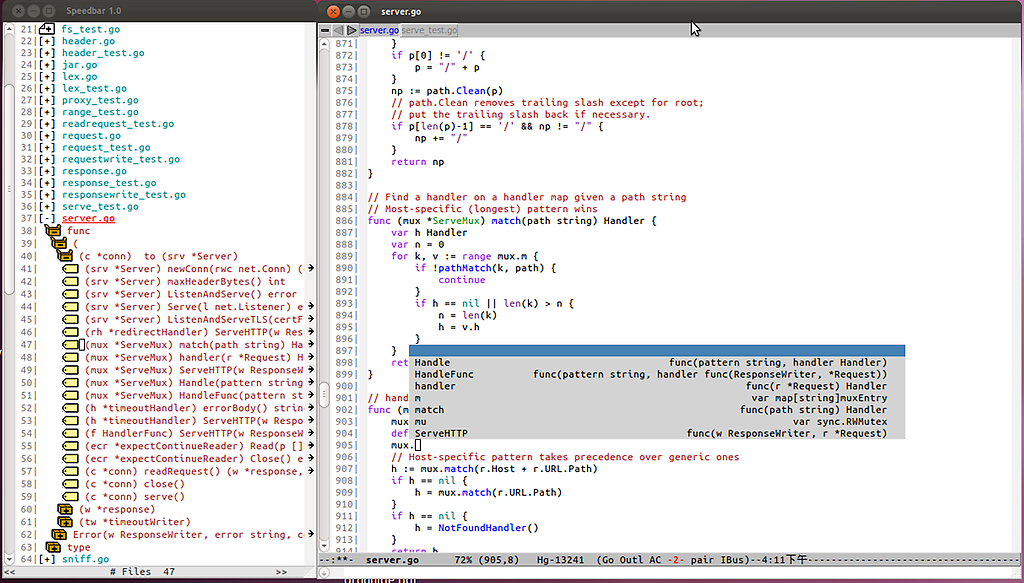
Emacs is the so-called Weapon of God. She is not only an editor, but also a powerful IDE.
|
||
|
||
|
||
|
||
Figure 1.10 Emacs main panel of Go editor
|
||
|
||
1. Syntax highlighting
|
||
|
||
cp $GOROOT/misc/emacs/* ~/.emacs.d/
|
||
|
||
2. Install [gocode](https://github.com/nsf/gocode/)
|
||
|
||
go get -u github.com/nsf/gocode
|
||
|
||
gocode will be installed in `$GOBIN` as default
|
||
3. Configure [gocode](https://github.com/nsf/gocode/)
|
||
|
||
~ cd $GOPATH/src/github.com/nsf/gocode/vim
|
||
~ ./update.bash
|
||
~ gocode set propose-builtins true
|
||
propose-builtins true
|
||
~ gocode set lib-path "/home/border/gocode/pkg/linux_amd64"
|
||
lib-path "/home/border/gocode/pkg/linux_amd64"
|
||
~ gocode set
|
||
propose-builtins true
|
||
lib-path "/home/border/gocode/pkg/linux_amd64"
|
||
|
||
4. Install [Auto Completion](http://www.emacswiki.org/emacs/AutoComplete)
|
||
Download and uncompress
|
||
|
||
~ make install DIR=$HOME/.emacs.d/auto-complete
|
||
|
||
Configure ~/.emacs file
|
||
|
||
;;auto-complete
|
||
(require 'auto-complete-config)
|
||
(add-to-list 'ac-dictionary-directories "~/.emacs.d/auto-complete/ac-dict")
|
||
(ac-config-default)
|
||
(local-set-key (kbd "M-/") 'semantic-complete-analyze-inline)
|
||
(local-set-key "." 'semantic-complete-self-insert)
|
||
(local-set-key ">" 'semantic-complete-self-insert)
|
||
|
||
Follow this [link](http://www.emacswiki.org/emacs/AutoComplete) for more details.
|
||
5. Configure .emacs
|
||
|
||
;; golang mode
|
||
(require 'go-mode-load)
|
||
(require 'go-autocomplete)
|
||
;; speedbar
|
||
;; (speedbar 1)
|
||
(speedbar-add-supported-extension ".go")
|
||
(add-hook
|
||
'go-mode-hook
|
||
'(lambda ()
|
||
;; gocode
|
||
(auto-complete-mode 1)
|
||
(setq ac-sources '(ac-source-go))
|
||
;; Imenu & Speedbar
|
||
(setq imenu-generic-expression
|
||
'(("type" "^type *\\([^ \t\n\r\f]*\\)" 1)
|
||
("func" "^func *\\(.*\\) {" 1)))
|
||
(imenu-add-to-menubar "Index")
|
||
;; Outline mode
|
||
(make-local-variable 'outline-regexp)
|
||
(setq outline-regexp "//\\.\\|//[^\r\n\f][^\r\n\f]\\|pack\\|func\\|impo\\|cons\\|var.\\|type\\|\t\t*....")
|
||
(outline-minor-mode 1)
|
||
(local-set-key "\M-a" 'outline-previous-visible-heading)
|
||
(local-set-key "\M-e" 'outline-next-visible-heading)
|
||
;; Menu bar
|
||
(require 'easymenu)
|
||
(defconst go-hooked-menu
|
||
'("Go tools"
|
||
["Go run buffer" go t]
|
||
["Go reformat buffer" go-fmt-buffer t]
|
||
["Go check buffer" go-fix-buffer t]))
|
||
(easy-menu-define
|
||
go-added-menu
|
||
(current-local-map)
|
||
"Go tools"
|
||
go-hooked-menu)
|
||
|
||
;; Other
|
||
(setq show-trailing-whitespace t)
|
||
))
|
||
;; helper function
|
||
(defun go ()
|
||
"run current buffer"
|
||
(interactive)
|
||
(compile (concat "go run " (buffer-file-name))))
|
||
|
||
;; helper function
|
||
(defun go-fmt-buffer ()
|
||
"run gofmt on current buffer"
|
||
(interactive)
|
||
(if buffer-read-only
|
||
(progn
|
||
(ding)
|
||
(message "Buffer is read only"))
|
||
(let ((p (line-number-at-pos))
|
||
(filename (buffer-file-name))
|
||
(old-max-mini-window-height max-mini-window-height))
|
||
(show-all)
|
||
(if (get-buffer "*Go Reformat Errors*")
|
||
(progn
|
||
(delete-windows-on "*Go Reformat Errors*")
|
||
(kill-buffer "*Go Reformat Errors*")))
|
||
(setq max-mini-window-height 1)
|
||
(if (= 0 (shell-command-on-region (point-min) (point-max) "gofmt" "*Go Reformat Output*" nil "*Go Reformat Errors*" t))
|
||
(progn
|
||
(erase-buffer)
|
||
(insert-buffer-substring "*Go Reformat Output*")
|
||
(goto-char (point-min))
|
||
(forward-line (1- p)))
|
||
(with-current-buffer "*Go Reformat Errors*"
|
||
(progn
|
||
(goto-char (point-min))
|
||
(while (re-search-forward "<standard input>" nil t)
|
||
(replace-match filename))
|
||
(goto-char (point-min))
|
||
(compilation-mode))))
|
||
(setq max-mini-window-height old-max-mini-window-height)
|
||
(delete-windows-on "*Go Reformat Output*")
|
||
(kill-buffer "*Go Reformat Output*"))))
|
||
;; helper function
|
||
(defun go-fix-buffer ()
|
||
"run gofix on current buffer"
|
||
(interactive)
|
||
(show-all)
|
||
(shell-command-on-region (point-min) (point-max) "go tool fix -diff"))
|
||
6. Congratulations, you're done! Speedbar is closed by default -remove the comment symbols in the line `;;(speedbar 1)` to enable this feature, or you can use it through `M-x speedbar`.
|
||
|
||
## Eclipse
|
||
|
||
Eclipse is also a great development tool. I'll show you how to use it to write Go programs.
|
||
|
||

|
||
|
||
Figure 1.1 Eclipse main panel for editing Go
|
||
|
||
1. Download and install [Eclipse](http://www.eclipse.org/)
|
||
2. Download [goclipse](https://code.google.com/p/goclipse/)
|
||
[http://code.google.com/p/goclipse/wiki/InstallationInstructions](http://code.google.com/p/goclipse/wiki/InstallationInstructions)
|
||
3. Download gocode
|
||
|
||
gocode in Github.
|
||
|
||
https://github.com/nsf/gocode
|
||
|
||
You need to install git in Windows, usually we use [msysgit](https://code.google.com/p/msysgit/)
|
||
|
||
Install gocode in the command tool
|
||
|
||
go get -u github.com/nsf/gocode
|
||
|
||
You can install from source code if you like.
|
||
4. Download and install [MinGW](http://sourceforge.net/projects/mingw/files/MinGW/)
|
||
5. Configure plugins.
|
||
|
||
Windows->Preferences->Go
|
||
|
||
(1).Configure Go compiler
|
||
|
||

|
||
|
||
Figure 1.12 Go Setting in Eclipse
|
||
|
||
(2).Configure gocode(optional), set gocode path to where the gocode.exe is.
|
||
|
||

|
||
|
||
Figure 1.13 gocode Setting
|
||
|
||
(3).Configure gdb(optional), set gdb path to where the gdb.exe is.
|
||
|
||
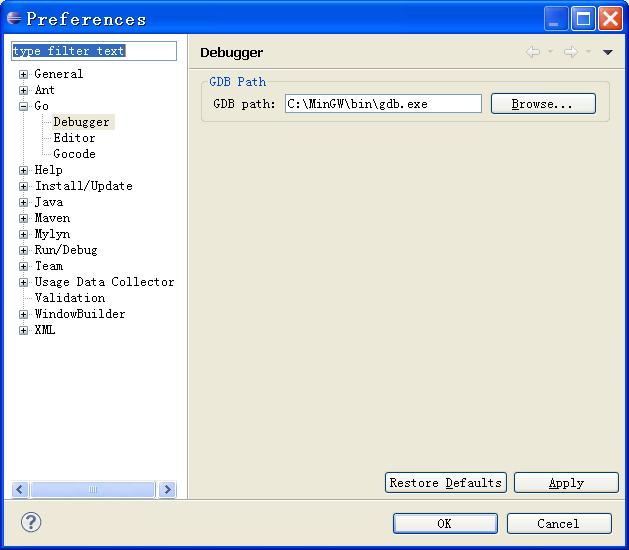
|
||
|
||
Figure 1.14 gdb Setting
|
||
6. Check the installation
|
||
|
||
Create a new Go project and hello.go file as following.
|
||
|
||

|
||
|
||
Figure 1.15 Create a new project and file
|
||
|
||
Test installation as follows.(you need to type command in console in Eclipse)
|
||
|
||

|
||
|
||
Figure 1.16 Test Go program in Eclipse
|
||
|
||
## IntelliJ IDEA
|
||
|
||
People who have worked with Java should be familiar with this IDE. It supports Go syntax highlighting and intelligent code completion, implemented by a plugin.
|
||
|
||
1. Download IDEA, there is no difference between the Ultimate and Community editions
|
||
|
||

|
||
|
||
2. Install the Go plugin. Choose `File - Setting - Plugins`, then click `Browser repo`.
|
||
|
||
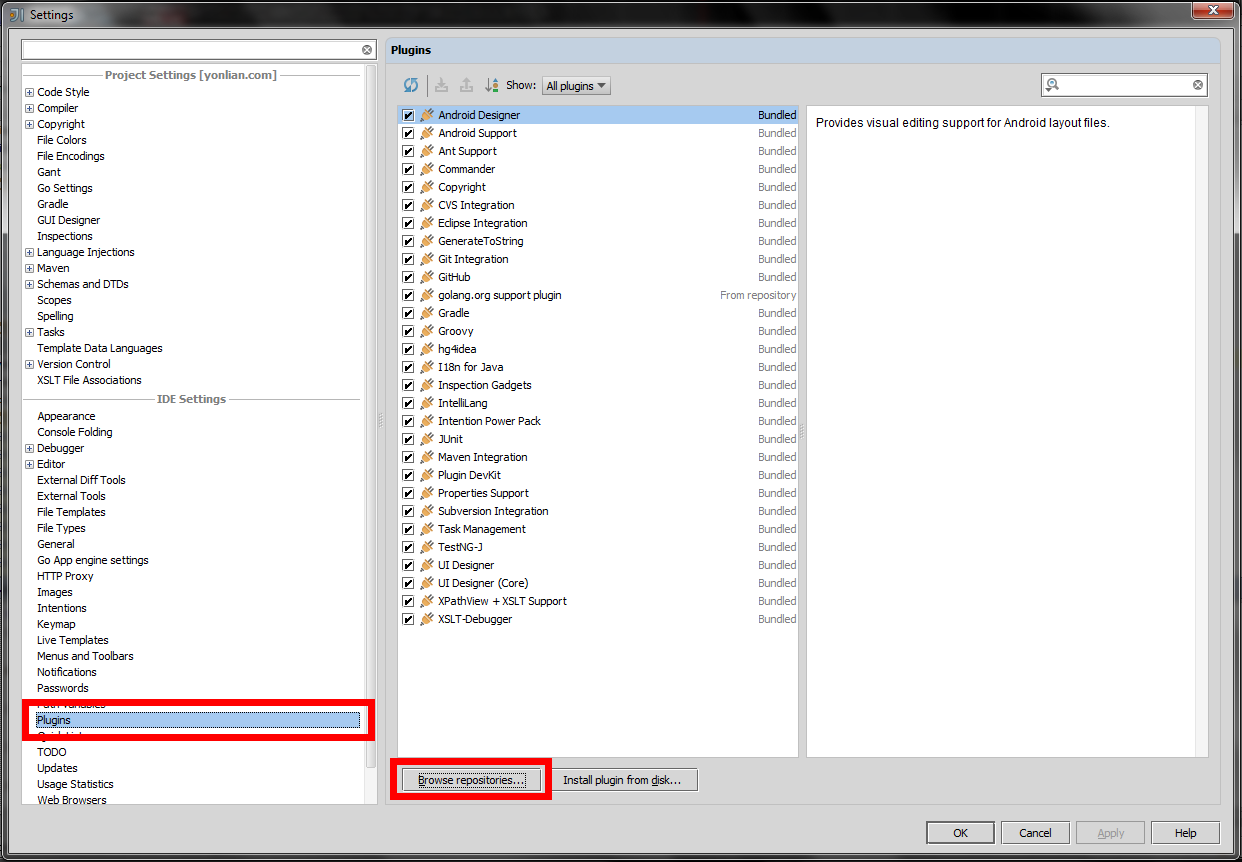
|
||
|
||
3. Search `golang`, double click `download and install` and wait for the download to complete.
|
||
|
||
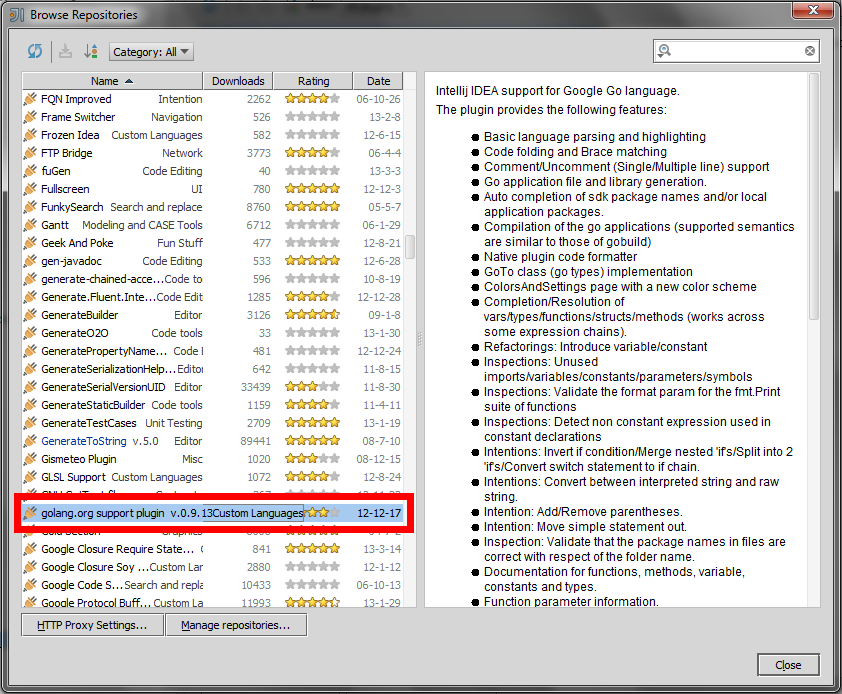
|
||
|
||
Click `Apply`, then restart.
|
||
4. Now you can create a Go project.
|
||
|
||
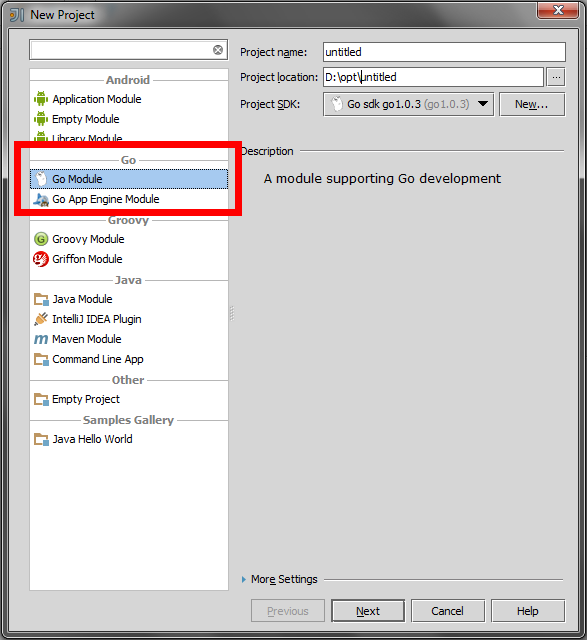
|
||
|
||
Input the position of your Go sdk in the next step -basically it's your $GOROOT.
|
||
|
||
( ***See a [blog post](http://wuwen.org/tips-about-using-intellij-idea-and-go/) for setup and use IntelliJ IDEA with Go step by step *** )
|
||
|
||
|
||
## Visual Studio VSCode
|
||
|
||
This is an awesome text editor released as open source cross platform by Microsoft which takes the development experience to a whole new level, https://code.visualstudio.com/. It has everything a modern text editor is expected to have and despite being based on the same backend that atom.io is based, it is very fast.
|
||
|
||
It works with Windows, Mac, Linux. It has go package built, it provides code linting.
|
||
|
||
## Atom
|
||
|
||
Atom is an awesome text editor released as open source cross platform, built on Electron , and based on everything we love about our favorite editors. We designed it to be deeply customizable, but still approachable using the default configuration.
|
||
|
||
Download: https://atom.io/
|
||
|
||
## GoLand
|
||
|
||
GoLand is the codename for a new commercial IDE by JetBrains aimed at providing an ergonomic environment for Go development.
|
||
|
||
Download: https://www.jetbrains.com/go/
|
||
|
||
## Links
|
||
|
||
- [Directory](preface.md)
|
||
- Previous section: [Go commands](01.3.md)
|
||
- Next section: [Summary](01.5.md)
|