
107 lines
6.4 KiB
Markdown
107 lines
6.4 KiB
Markdown
#1.3 Go commands
|
|
|
|
## Go commands
|
|
|
|
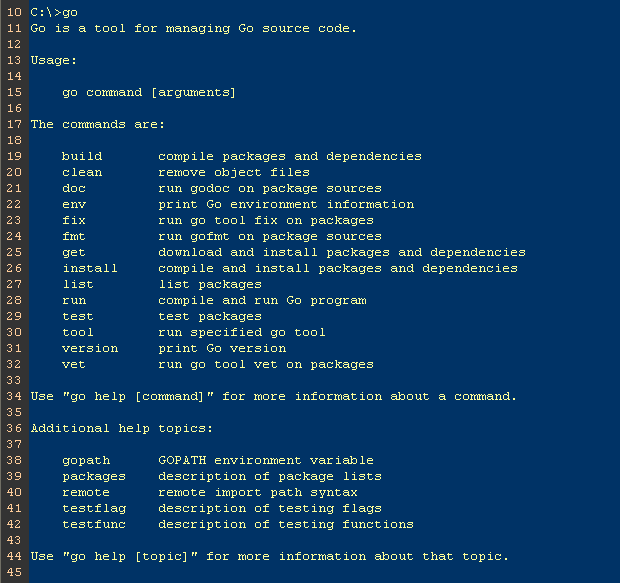
The Go language comes with a complete set of command operation tools. You can execute the command line `go` to see them:
|
|
|
|
|
|
|
|
Figure 1.3 Go command displays detailed information
|
|
|
|
These are all useful for us. Let's see how to use some of them.
|
|
|
|
## go build
|
|
|
|
This command is for compiling tests. It will compile dependence packages if it's necessary.
|
|
|
|
- If the package is not the `main` package such as `mymath` in section 1.2, nothing will be generated after you execute `go build`. If you need package file `.a` in `$GOPATH/pkg`, use `go install` instead.
|
|
- If the package is the `main` package, it will generate an executable file in the same folder. If you want the file to be generated in `$GOPATH/bin`, use `go install` or `go build -o ${PATH_HERE}/a.exe.`
|
|
- If there are many files in the folder, but you just want to compile one of them, you should append the file name after `go build`. For example, `go build a.go`. `go build` will compile all the files in the folder.
|
|
- You can also assign the name of the file that will be generated. For instance, in the `mathapp` project (in section 1.2), using `go build -o astaxie.exe` will generate `astaxie.exe` instead of `mathapp.exe`. The default name is your folder name (non-main package) or the first source file name (main package).
|
|
|
|
(According to [The Go Programming Language Specification](https://golang.org/ref/spec), package names should be the name after the word `package` in the first line of your source files. It doesn't have to be the same as the folder name, and the executable file name will be your folder name by default.])
|
|
|
|
- `go build` ignores files whose names start with `_` or `.`.
|
|
- If you want to have different source files for every operating system, you can name files with the system name as a suffix. Suppose there are some source files for loading arrays. They could be named as follows:
|
|
|
|
array_linux.go | array_darwin.go | array_windows.go | array_freebsd.go
|
|
|
|
`go build` chooses the one that's associated with your operating system. For example, it only compiles array_linux.go in Linux systems, and ignores all the others.
|
|
|
|
## go clean
|
|
|
|
This command is for cleaning files that are generated by compilers, including the following files:
|
|
|
|
_obj/ // old directory of object, left by Makefiles
|
|
_test/ // old directory of test, left by Makefiles
|
|
_testmain.go // old directory of gotest, left by Makefiles
|
|
test.out // old directory of test, left by Makefiles
|
|
build.out // old directory of test, left by Makefiles
|
|
*.[568ao] // object files, left by Makefiles
|
|
|
|
DIR(.exe) // generated by go build
|
|
DIR.test(.exe) // generated by go test -c
|
|
MAINFILE(.exe) // generated by go build MAINFILE.go
|
|
|
|
I usually use this command to clean up my files before I upload my project to Github. These are useful for local tests, but useless for version control.
|
|
|
|
## go fmt and gofmt
|
|
|
|
The people who are working with C/C++ should know that people are always arguing about which code style is better: K&R-style or ANSI-style. However in Go, there is only one code style which is enforced. For example, left braces must only be inserted at the end of lines, and they cannot be on their own lines, otherwise you will get compile errors! Fortunately, you don't have to remember these rules. `go fmt` does this job for you. Just execute the command `go fmt <File name>.go` in terminal. I don't use this command very much because IDEs usually execute this command automatically when you save source files. I will talk about IDEs more in the next section.
|
|
|
|
`go fmt` is just an alias, which runs the command 'gofmt -l -w' on the packages named by the import paths.
|
|
|
|
We usually use `gofmt -w` instead of `go fmt`. The latter will not rewrite your source files after formatting code. `gofmt -w src` formats the whole project.
|
|
|
|
## go get
|
|
|
|
This command is for getting remote packages. So far, it supports BitBucket, Github, Google Code and Launchpad. There are actually two things that happen after we execute this command. The first thing is that Go downloads the source code, then executes `go install`. Before you use this command, make sure you have installed all of the related tools.
|
|
|
|
BitBucket (Mercurial Git)
|
|
Github (git)
|
|
Google Code (Git, Mercurial, Subversion)
|
|
Launchpad (Bazaar)
|
|
|
|
In order to use this command, you have to install these tools correctly. Don't forget to set `$PATH`. By the way, it also supports customized domain names. Use `go help remote` for more details about this.
|
|
|
|
## go install
|
|
|
|
This command compiles all packages and generates files, then moves them to `$GOPATH/pkg` or `$GOPATH/bin`.
|
|
|
|
## go test
|
|
|
|
This command loads all files whose name include `*_test.go` and generates test files, then prints information that looks like the following.
|
|
|
|
ok archive/tar 0.011s
|
|
FAIL archive/zip 0.022s
|
|
ok compress/gzip 0.033s
|
|
...
|
|
|
|
It tests all your test files by default. Use command `go help testflag` for more details.
|
|
|
|
## godoc
|
|
|
|
Many people say that we don't need any third-party documentation for programming in Go (actually I've made a [CHM](https://github.com/astaxie/godoc) already). Go has a powerful tool to manage documentation natively.
|
|
|
|
So how do we look up package information in documentation? For instance, if you want to get more details about the `builtin` package, use the `godoc builtin` command. Similarly, use the `godoc net/http` command to look up the `http` package documentation. If you want to see more details about specific functions, use the `godoc fmt Printf` and `godoc -src fmt Printf` commands to view the source code.
|
|
|
|
Execute the `godoc -http=:8080` command, then open `127.0.0.1:8080` in your browser. You should see a localized golang.org. It can not only show the standard packages' information, but also packages in your `$GOPATH/pkg`. It's great for people who are suffering from the Great Firewall of China.
|
|
|
|
## Other commands
|
|
|
|
Go provides more commands than those we've just talked about.
|
|
|
|
go fix // upgrade code from an old version before go1 to a new version after go1
|
|
go version // get information about your version of Go
|
|
go env // view environment variables about Go
|
|
go list // list all installed packages
|
|
go run // compile temporary files and run the application
|
|
|
|
There are also more details about the commands that I've talked about. You can use `go help <command>` to look them up.
|
|
|
|
## Links
|
|
|
|
- [Directory](preface.md)
|
|
- Previous section: [$GOPATH and workspace](01.2.md)
|
|
- Next section: [Go development tools](01.4.md)
|